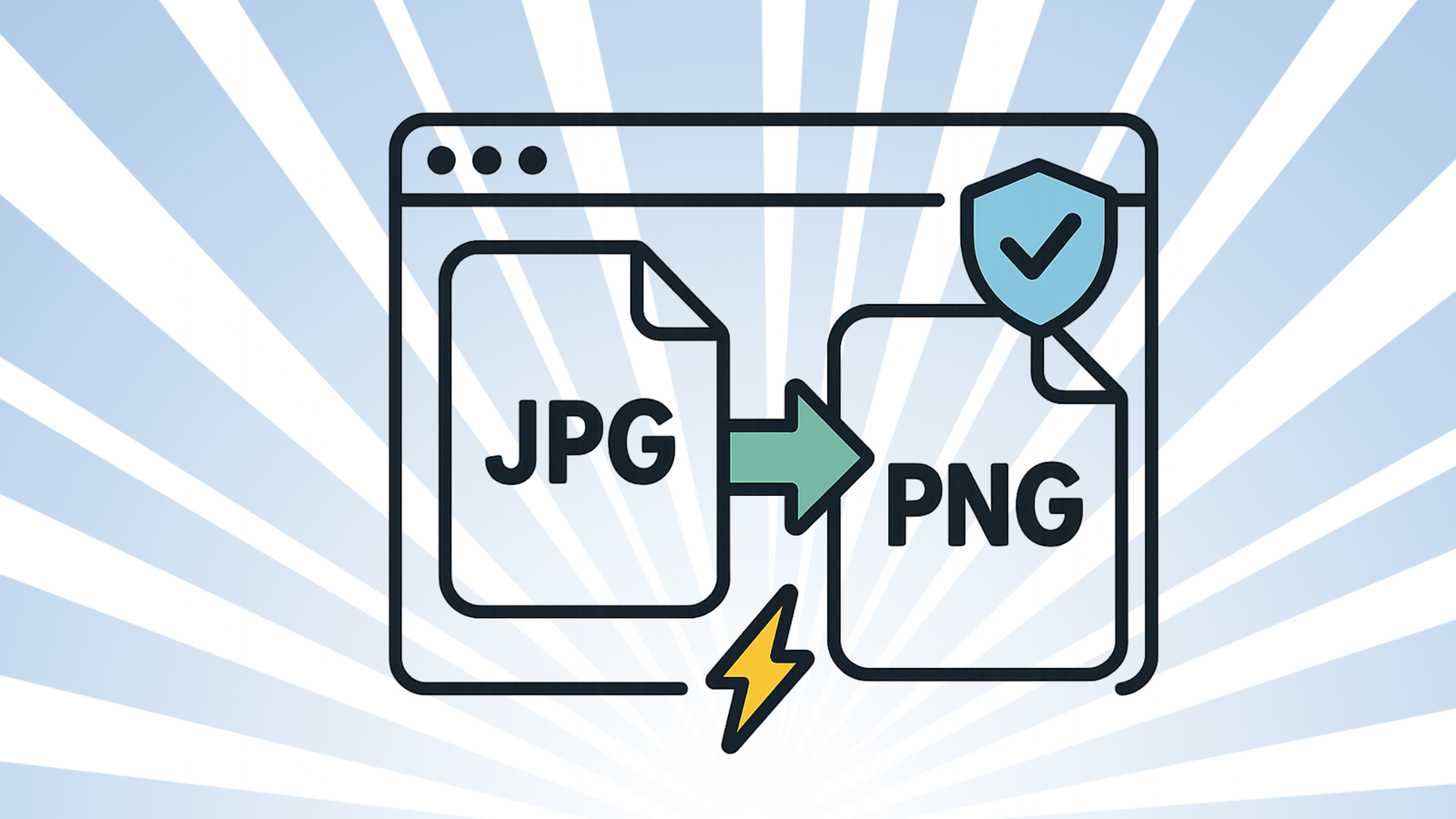
Need a quick format swap without risking your files in the cloud? This guide shows you how to convert JPEG to PNG entirely in your browser—no sign-up, no server uploads, just instant results. Perfect for creators, students, marketers, and indie devs who care about speed and privacy.
Why this method?
- 100% local (runs in your browser)
- No account, no tracking pixels
- Fast on modest laptops and phones
- Works with multiple files
Privacy note: Agmad tools process images locally using browser APIs. Your files never leave your device.
How to convert JPEG to PNG without uploading anything
- Open the JPEG → PNG tool
Go to Agmad JPEG→PNG Converter (your browser-only tool). - Drop your JPEG(s)
Drag files into the tool or click Choose File. You can add more than one for a quick batch. - (Optional) Adjust settings
- Strip metadata (EXIF) to reduce size.
- Keep original name for tidy asset management (e.g.,
hero-01.png).
- Download PNG
Click Download (or Download all for batches). Your images save instantly—no waiting for uploads. - (Optional) Optimize for web
If the PNG is large (photos often are), run it through Agmad Image Compressor or consider WebP for web use.
When should you use PNG instead of JPEG?
Use PNG for:
- Transparency (logos, icons, overlays)
- Sharp graphics & UI (text, line art, screenshots)
- When you need lossless output
Stick with JPEG/WebP for:
- Photographs (PNG can be much larger)
- Background images where transparency isn’t needed
Tips & common mistakes
✅ Tips
- Remove EXIF to slim files (EXIF can add 50–300 KB).
- Batch convert to keep sizes and names consistent across assets.
- Check color profile (sRGB) for consistent web display.
🚫 Mistakes to avoid
- Expecting PNG to “improve” quality. Converting doesn’t add detail; it just changes format.
- Using PNG for large photos when a JPEG/WebP would load faster.
- Thinking PNG conversion makes a background transparent. You’ll need a background remover (different tool) for that.
FAQs
Is this really “no upload”?
Yes. Conversion happens locally in your browser. No file is sent to a server.
Will PNG improve my image quality?
No. It preserves what’s already there. PNG is lossless but doesn’t invent detail.
Why is my PNG bigger than the JPEG?
PNG is lossless—great for graphics, not always for photos. For web photos, compress or consider WebP.
Can I convert multiple images at once?
Yes. Drag a batch and download them together to save time.
Do it now (fast & private)
- 👉 Use the JPEG → PNG Converter (browser-only)
- ⚡ Then compress PNGs for web speed
- 📏 Need exact sizes? Resize Images in your browser
Related guides
- WebP vs JPEG vs PNG: Which Should You Use?
- Batch Workflow: Resize → Compress → Convert